At Testify, we have developed a modular system that enables you to digitally control, document and analyze all types of mobile testing and quality processes.
Today we would like to present examples of workflows in Testify and take a closer look at the workflow functions of the software, which we have prepared for you in the following.
We present these examples of complete workflows:
1) Initiation of a checklist when adding a test object
2) Initiation of a checklist when creating a defect
3) Initiation of a sequence of related checklists
4) PDF generation after checklist execution
5) Webhook: Save PDF log to external system
6) Timer: Monthly assignment of a defect as a task
7) Timer & notification: Periodic notifications to persons/groups
Automate work processes in Testify.
Automated workflows ensure efficient workflows in your checklist processes. By using the workflow management feature, you can save time and resources by automating recurring activities. This allows you to fully focus on your core tasks in the future!
Customize your checklist, defect and test object workflows simply and easily to your individual needs. The special feature of Testify is that process flows can be configured – in other words, according to the motto: no-code implementation. This means that you can make quick adjustments to your company workflows. Without any programming knowledge!
Introduction to events, promotions and webhooks.
Webhooks, events and actions are needed to network process sequences so that you can create digital consistency across multiple systems. But what does that actually mean?
What is the connection between actions and events?
Workflows enable the automation of work processes within Testify by triggering predefined actions through certain events.
What are webhooks?
Webhooks are used to transfer information to external systems in order to trigger actions there.
Examples of actions
Here we would like to present three examples of actions that can be used in workflow management: Webhook, Generate PDF and Send Notification.
Example: Webhook action
Based on events within Testify, webhooks can also be added independently as actions in workflow management. This is possible by selecting the “Webhook” area with the “Trigger” type. A URL must be specified as a parameter; optionally, an identifier, an HTTP request timeout and HTTP status codes that indicate success can be entered.

Example: Generate PDF action
The generation of PDF logs can also be automated as an action via a workflow. This process automation should start the generation of PDFs for the filtered checklists. Filters can be set based on the events in order to define exactly for which test objects or checklists the automated PDF generation should take place.

As a prerequisite for this automation, it is necessary to define a corresponding event in advance:
Area: Checklist
Remaining filters as required
The action can then be defined:
Area: PDF
Type: generate
Parameters: Selection of the desired PDF protocol profile and language
Example: Send notification action
Notifications can be triggered by checklists, defects, test objects, users or timers. The language, the message, the recipient (user or group) and the notification type (mail, in-app) can be defined. In addition, the user-defined messages can be translated.
Event “Test object created” triggers the “Notification” action:


Examples of complete workflows.
Below we present 7 examples that show how the workflow functions can be used in practice.
1) Initiation of a checklist when adding a test object
In this example, we will show you how to create a workflow for ‘Publishing a checklist when adding a test object’.
Event:
When a new test object is added from “Testify Admin” to “Frankfurt Airport”, the action is executed.
Action:
A checklist is created by “Testify Admin” for the added test object, which is assigned to the user “Testify Admin” and is due in 7 days at 12:30 pm.
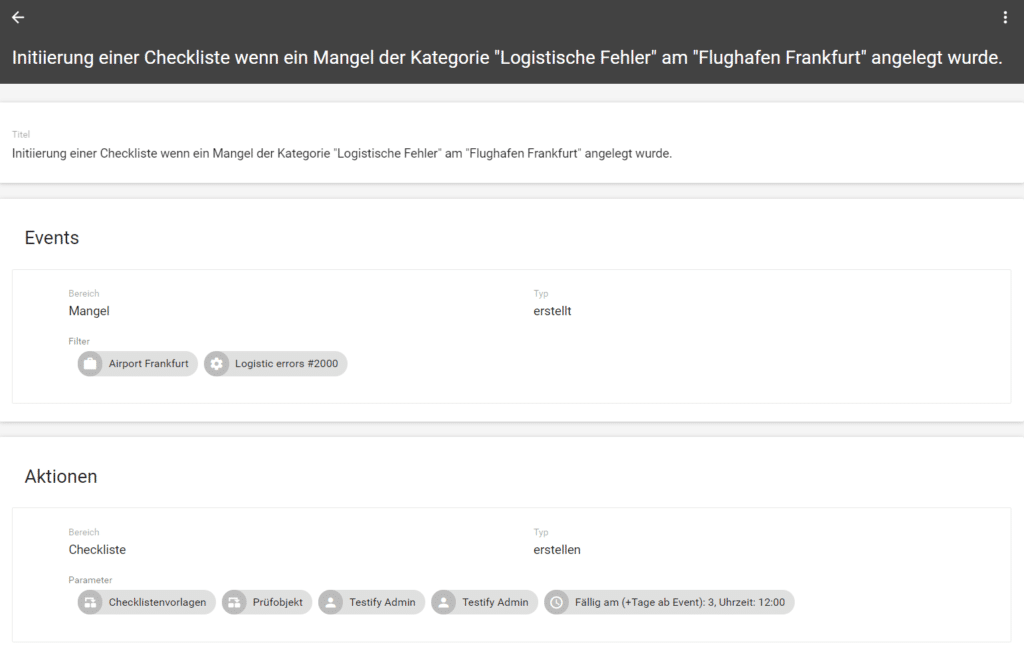
2) Initiation of a checklist when creating a defect
In this example, we will show you how to put together a workflow for ‘Publishing a checklist when creating a defect’.
Event:
If a new defect with the category “Logistical error” is added to “Frankfurt Airport”, the action is executed.
Action:
A “Logistical Defect – Checklist” checklist is created by “Testify Admin” for the test object where the defect occurred, assigned to the “Engineering” area and is due in 3 days at 12:01.
3) Introduction of a sequence of related checklists
In this example, we will show you how to put together a workflow for the ‘Initiation of a sequence of related checklists’.
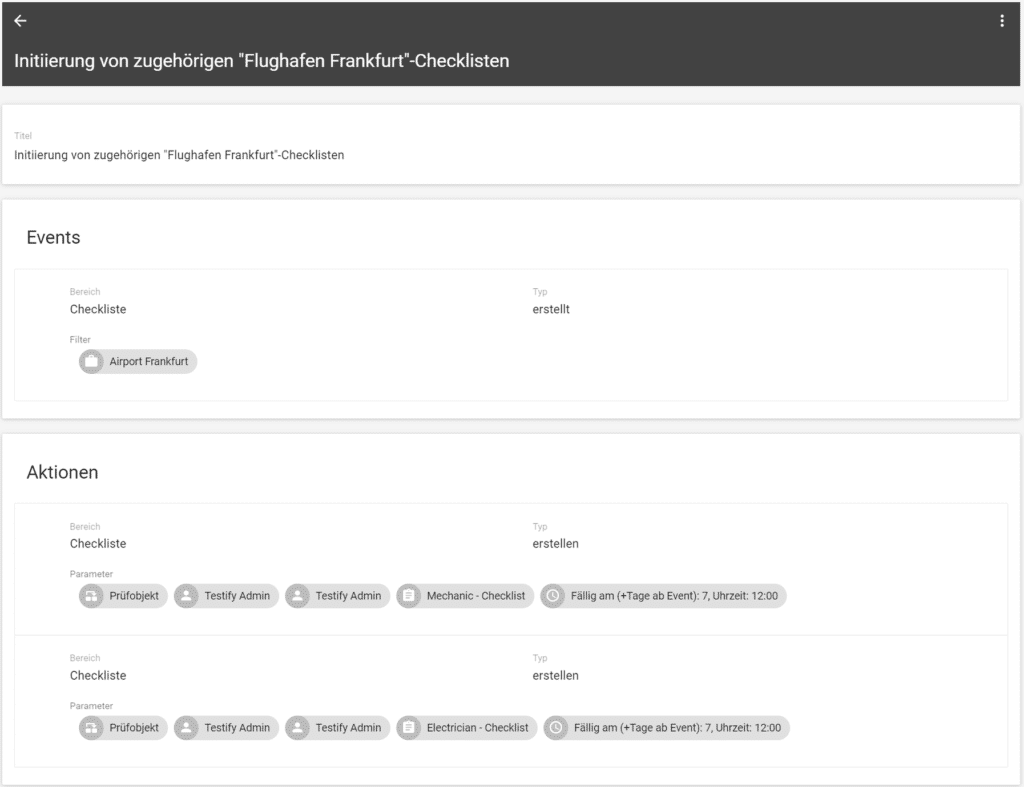
Event:
If a checklist is created for an inspection object “Frankfurt Airport”, the action is executed.
Action:
- An “Electrician – Checklist” is created for the same test object by “Testify Admin”, assigned to “Testify Admin” and due 7 days in advance at 12:00 noon.
- A “Mechanic – Checklist” is created for the same test object by “Testify Admin”, assigned to “Testify Admin” and due 7 days in advance at 12:00 noon.
4) PDF generation after checklist execution
In this example, we show you how to create a workflow for ‘PDF generation after checklist execution’.

Event:
If a checklist for a “Construction sites” test object is changed, the action is executed.
Action:
The standard PDF report is generated after a checklist with the “Construction sites” test object has been changed.
5) Webhook: Save PDF log to external system
PDF logs can also be automatically saved in external systems. For this purpose, an interface can be built by the customer based on our webhook, which stores the generated logs at the desired destination.

Event:
If a standard PDF report is created for a checklist with the “Construction sites” test object, the action is executed.
Action:
The created PDF log is saved in an external system via the interface with the Webhook action.
6) Timer: Monthly assignment of a defect as a task
In this example, we will show you how to set up a workflow for a ‘Monthly assignment of a defect as a task’.
(In this example, defects are used to map tasks).

Event:
- Range: Timer
- Type: trigger
- Parameters: Last weekday of each month
Action:
- Area: Deficiency
- Type: create
- Parameter: Assigned to Backoffice, Created by Testify Admin, Category Project Management #13, Severity A, Due Date 2 days from event at 08:00, Title and Description
7) Timer & notification: Periodic notifications to persons/groups
In this example, we will show you how to create a workflow for ‘Periodic notifications to persons/groups’.
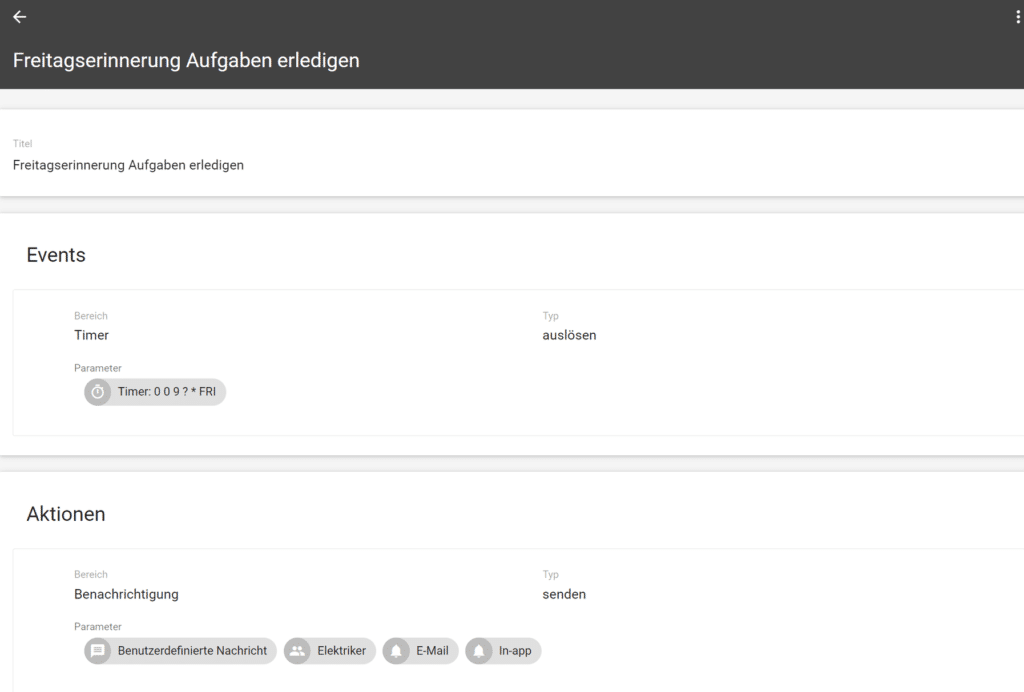
Event:
- Range: Timer
- Type: trigger
- Parameters: Weekly, Friday, 09:00 UTC
Action:
- Area: Notification
- Type: send
- Parameters: Customized message in German & English, send to electrician, notification type email and in-app
If you have any further questions about workflows or would like to find out more about Testify, please contact us.